1) Log into your website
2) Create a new page: Pages >Add New

3) The page should then look like this:

4) Activate WPBakery Page Builder by clicking on the button

5) The page should now look like this:

6) Now edit the page with Backend Editor by clicking on the button:

7) Your page should now look like this:

8) Now enter the name for your page by entering text into the Add Title box

For example:

I have named this page “Links Page”
9) Now scroll down to WpBakery Page Builder section. It should look like this:

10) Now press the Add Element button
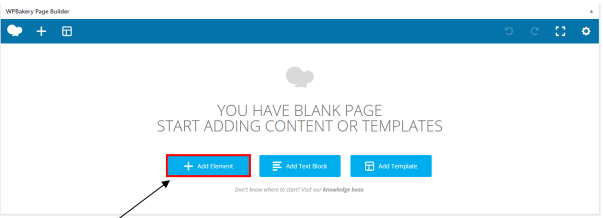
11) Your page should now look like this:
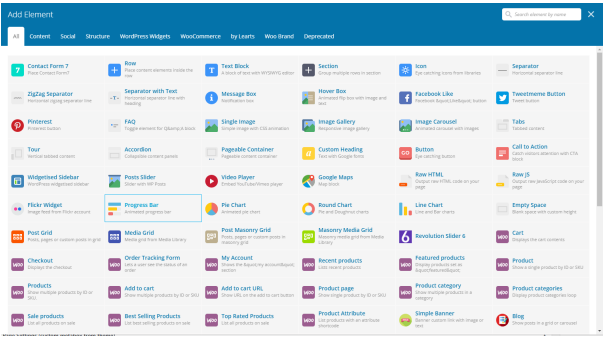
12) Now add a row by selecting the Row element
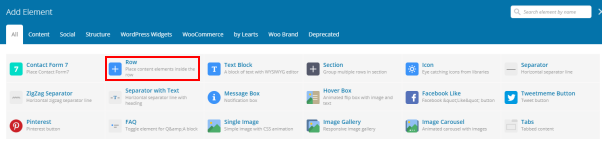
13) Your page should now look like this:

14) Now add a button by clicking on the Plus button

15) Your page should now look like this:

16) Now add a button by selecting the Button element. It should look like this:
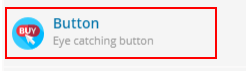
17) Your page should now look like this:
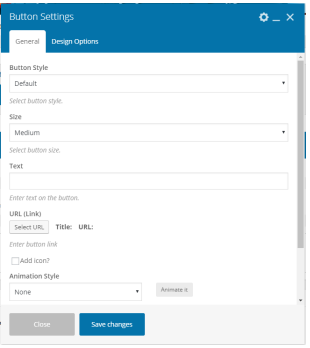
18) Now enter the text you want to be displayed on the button in the Text box

For Example:
I have named this button “Facebook”

19) Now add the URL (link) for your button by clicking on the Select URL button

20) Your page should now look like this:
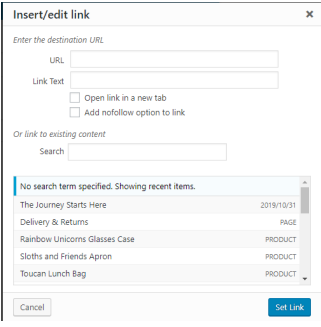
21) Enter your URL into the URL box

For Example:
I have entered my URL into the URL box

22) Now enter the text you want to be displayed on the button in the Link Text box

For Example:
I have called this link “Facebook”

23) Now set the link by clicking the Set Link button

24) Your page should look like this again:

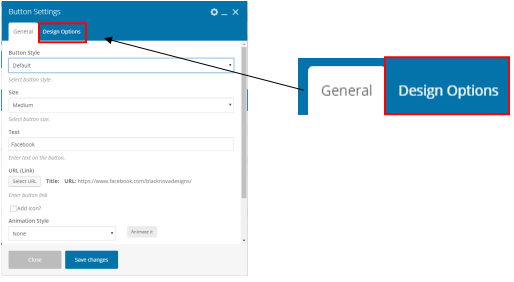
25) To change the colour of your button, click on Design Options tab
26) Now select the Background attribute
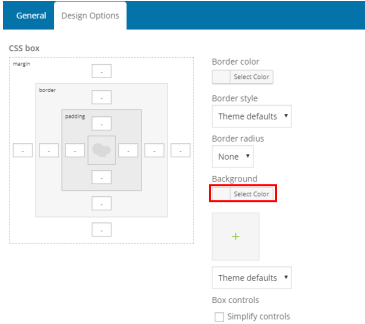
27) Enter the hex colour code into the box
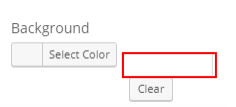
For Example:
I have entered the hex code for blue
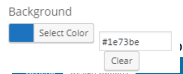
28) To change the border colour, select the Border Colour attribute
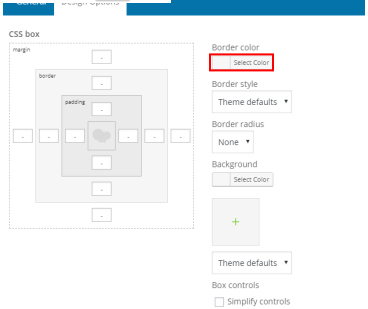
29) Enter the hex colour code into the box

For example:
I have entered the hex code for blue

31) Now save your link by clicking on the Save Changes button

32) If you want to create more links/buttons, repeat steps 14-31
33) One you are happy, publish the page by clicking on the Publish button