First and foremost, we’ll set up a coupon you can use right away to make your customers happier.
Let’s say your bookstore’s anniversary is in October. To celebrate another successful year, you want to give your customers a 50% discount on books for the entire month — but only for the first 200 customers.
To add a new coupon, go to WooCommerce → Coupons and click Add coupon. The opening screen will present you with the Coupon code and Description fields:

Coupon code is the code customers will enter to apply the coupon to their cart. Description is an optional field that’s not visible to customers, only to merchants.
Below these fields, you’ll see the Coupon data block. It has three sections:
- General
- Usage restriction
- Usage limits
Let’s take a closer look at each one.
- General
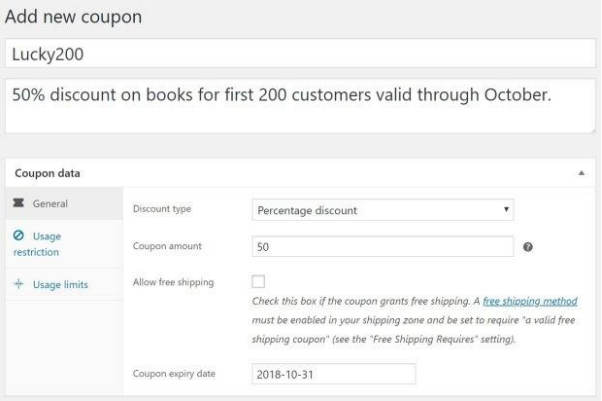
General section
By default, WooCommerce comes with three discount types:
- Percentage discounts apply a percentage discount to the entire cart.
- Fixed cart discounts apply a fixed amount discount to the entire cart.
- Fixed product discounts apply a fixed amount discount to selected products only. The discount is calculated per item and not for the whole cart.
Use the Coupon amount field to set the amount of the discount, the Discount type field to set the type, and the Coupon expiry date to set an expiration date. You can also offer free shipping to customers using the coupon. In the example above, we’ve created a coupon that gives a 50% discount to the entire cart and that expires on October 31, 2018
2. Usage restriction
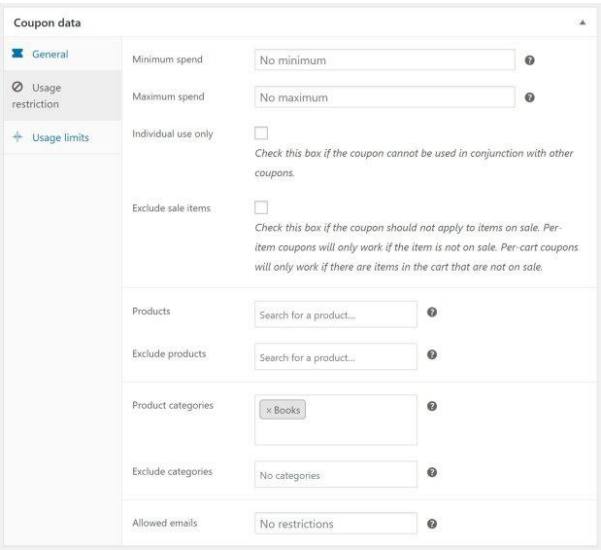
Usage restriction section
If you don’t select any restrictions, anyone can add the coupon to their cart at any time, which probably isn’t what you want.
You can apply the a few different restrictions to your coupon:
- Set a minimum or maximum order subtotal (that is: the sum of the cart subtotal + tax).
- Include or exclude selected products or categories.
- Limit by ‘allowed’ emails (verified against the customer’s billing emai)l. WooCommerce 3.4+ also allows you to include a wildcard character (*) to match multiple email addresses, for example, `*@gmail.com` would make any gmail address.
In our example, we’ve restricted the discount to the Books category by using the Product categories field.
If you find you need to add further limits – for example, restriciting to new customers or by country – check out WooCommerce Coupon Restrictions.
3. Usage limits
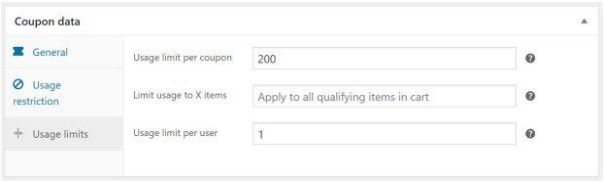
Usage limits section
Here, you can specify how many times the coupon can be used per customer and in total. You can also define the number of products it can be applied to at once. In the screenshot above, you’ll see that we’ve specified that the coupon once by customer, and by 200 customers altogether.
Now, if our shoppers add the “LUCKY200” coupon to their carts, they’ll get 50% off all products in the “Books” category as long as they’re one of the first 200 customers. Any other products are in the cart will remain full price
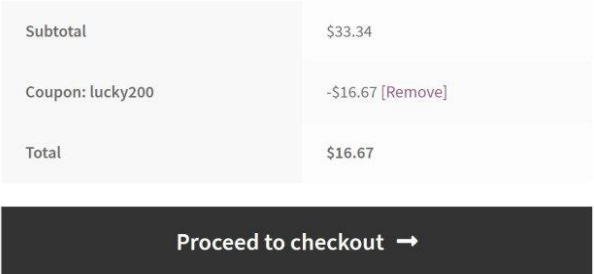
Coupon applied