Step 1: Managing products attributes
Before creating the variations for products, the attributes need to be set up. To do so you need to:
1. Choose Attributes in the left hand menu.

2. Give a Name to your attribute (e.g. Sizes).
3. Then, click in “Add Attribute” button.
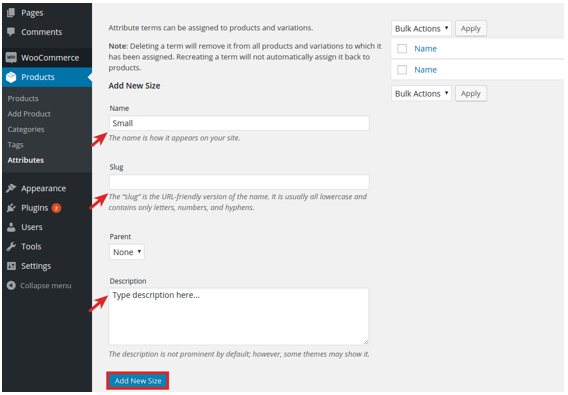
4. Now, choose the "Configure terms" button to add attribute values.

5. Add a new Attribute value name (e.g. small).
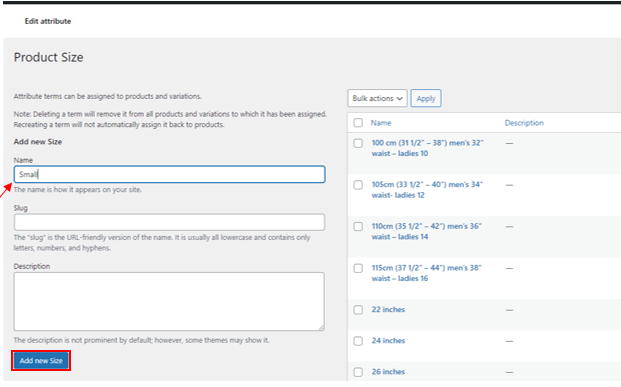
6. Select “Add New Size”.
Step 2: Adding the product
1. Go to the left hand menu and click on Products>Add Product or Edit an existing one.

2. Enter the products name and the product’s description.

Step 3: Adding attributes for products
1. Pick “Variable product” from the Product Data Choose one from the list (e.g. Sizes) and click Add.

2. Enter your attributes into the box (eg. Small) or press Select All

Make sure both check boxes are ticked.
Step 4: Adding variations
1. Go to the Variations section. Choose “Create variations from all attributes” from the dropdown menu and press Go.

2. Click on the variation and set the Regular Price (e.g. £18)
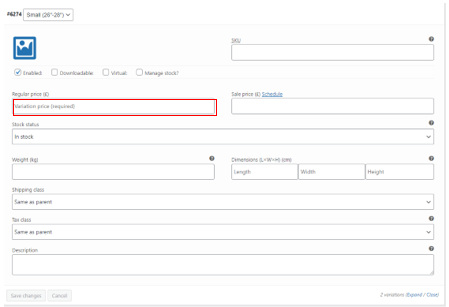
You can also set a sale price, edit the stock status, add a variation image ect.
3. Select “Save Changes”.
4. Pick the appropriate product category for your variable product (e.g. clothing).
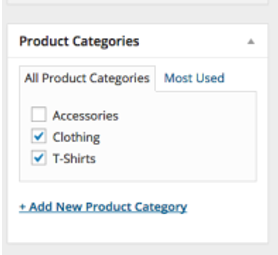
5. Select “Publish/Update” to add the product to the website.