A composite product consists of multiple building blocks called Components. Each component offers a variety of Component Options to choose from. For example, a bridle is configured by choosing:
- Size
- Colour
- Browband Design
- Browband Size
- Browband Style
- Cheek Piece Design
- Cheek Piece Size
- Headpiece Style
Before creating a composite product, you should:
- Determine the Components the product is made of
- Create all the products you would like to offer as component options. In the previous example this would be the sizes, the colours available ect.
Creating Component Products:
1. Go to Products > Add New

Your screen should look like this:

2. Enter the name of the component product in the Product Name box

3. Next go to the Product Data section, it should look like this:
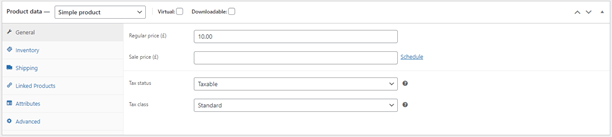
4. If the component option costs extra add the extra cost in the Regular Price box
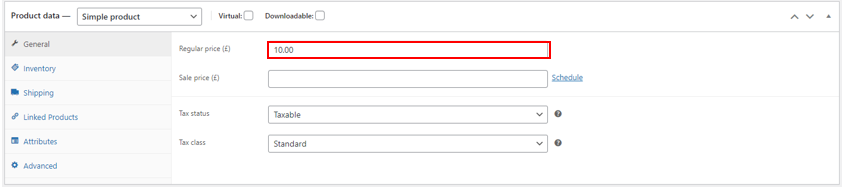
For example, the wavy competition browband costs an extra £10.00 whereas the option of having the bridle in the size full does not cost extra so does not require a price.
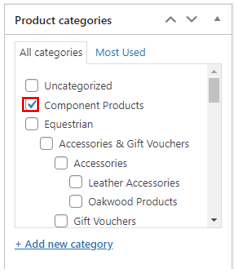
5. On the right-hand side of the screen in the Product Categories section, select the category ‘Component Products’.
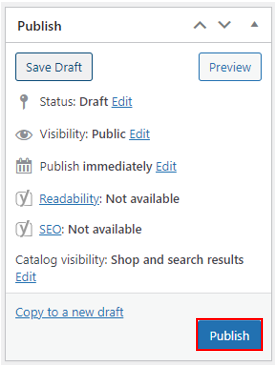
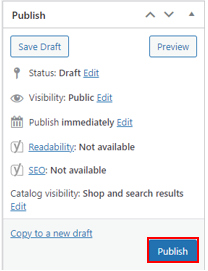
6. Publish your component product
Creating a Composite Product:
1. Go to Products > Add New
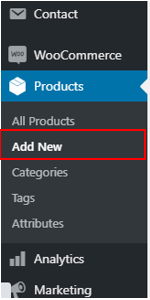
Your screen should look like this:

2. Enter your Product Name and Description

If your product description is four sentences or less use the short description instead:

3. Next go to the Product Data Section and select Composite Product from the drop-down menu. It should look like this:

4. Enter the base price of the component product in the Regular Price box
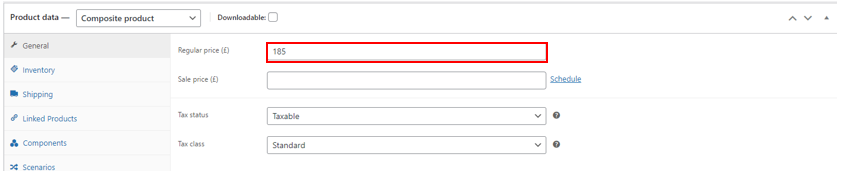
5. Go to the Components It should look like this:
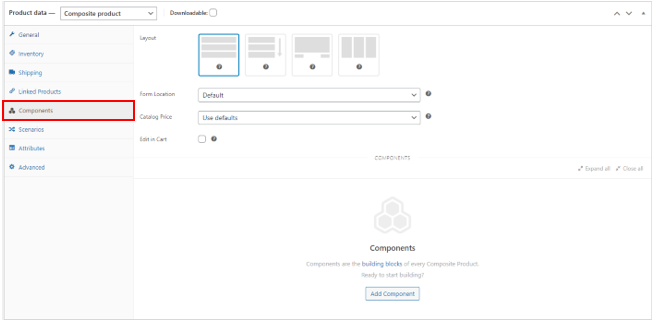
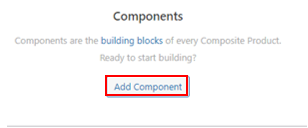
6. Click Add Component to add a component.
7. Enter the Component Name Browband design, bridle size

8. Add the component products you created earlier to the Component Options The browband designs available

If the component is optional select the check box.
9. If the component option costs extra select the check box next to Priced Individually

10. Select Advanced Settings

11. Make sure the ticked checked boxes are the same as the image above
12. To add another component, repeat steps 6-11
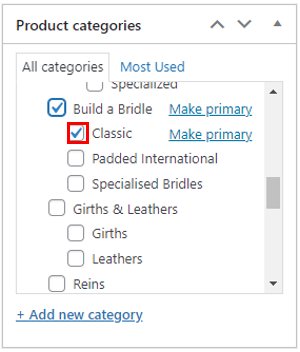
13. On the right-hand side of your screen select the appropriate Product Categories
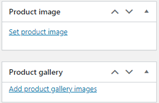
14. Add your Product Image and Product Gallery
15. Select Publish/Update to add the product to the website.